
JDE BIP - Custom Output File Name
Introduction
Section titled “Introduction”In JD Edwards EnterpriseOne, BI Publisher (BIP) extends standard report output by allowing developers and business analysts to customize how documents are formatted, named, and distributed. One of the most overlooked yet powerful features is the ability to define a custom output file name for each report.
Overview
Section titled “Overview”By default, JDE generates output files using system-assigned names such as R0006P_123456.pdf, which can make document management and automation difficult — especially when reports are saved to shared locations, integrated with external systems, or processed by scripts. Using BIP’s “Override File Name” option within the Report Definition (P95600), you can create file names that automatically include key data elements like the report name, user ID, date/time, or even XML tags such as invoice numbers or batch IDs.
This capability enhances:
- File traceability, making it easier to identify documents by business context.
- Automation compatibility, allowing external integrations (FTP, Orchestrator, etc.) to reference predictable file names.
- User clarity, ensuring output files are clearly identifiable across environments.
This guide explains how to configure custom output file names in JDE BI Publisher, including:
- Where to define the override within the Report Definition
- How to use tokens and dynamic placeholders
- How to map XML data tags to file names for advanced scenarios
Use Cases
Section titled “Use Cases”Custom output file names help automate and organize BI Publisher reports.
Common examples include:
- Naming invoices or purchase orders with document numbers.
- Delivering files to network folders with predictable names.
- Integrating reports into external systems via Orchestrator or FTP.
- Adding user or date tokens for easier tracking and version control.
Prerequisites
Section titled “Prerequisites”Before configuring custom output file names in JD Edwards BI Publisher, ensure the following requirements are met:
🧰 System Access
Section titled “🧰 System Access”- Access to JD Edwards EnterpriseOne with permission to open:
- P95600 – Report Definitions
- P95601 – Output Definition
- P95620 – Delivery Setup
- Access to a UBE report that already produces BIP output (XML data source available).
💻 Workstation Tools
Section titled “💻 Workstation Tools”- BI Publisher Desktop installed for editing
.rtftemplates.
(Typically available under Oracle BI Publisher Add-In for Microsoft Word.) - Optional: text editor for reviewing
.xmldata files.
🗂️ Environment Setup
Section titled “🗂️ Environment Setup”- Confirm that the Enterprise Server has write access to the desired output directory or network share.
- If saving to a UNC path (e.g.,
\\server\share\JDEReports), verify the path is reachable and permissioned for the JDE service account. - The BIP kernel (Report Publisher) must be active and running on the server.
🧠 Knowledge
Section titled “🧠 Knowledge”- Understanding of Report Definition (RD) structure and Delivery Options in JDE.
- Familiarity with tokens and placeholders used in BIP file naming (e.g.,
%R,%U,%D,%T). - Basic knowledge of XML structure and how data tags map to fields in a BIP template.
⚙️ Recommended Setup for Testing
Section titled “⚙️ Recommended Setup for Testing”- Use a non-production environment to validate file delivery paths.
- Enable BIP logging for debugging naming or delivery issues (
jde.logandBIPPublisher.log).
Once these prerequisites are confirmed, you can proceed to define the Override File Name and configure the output mapping in P95600.
Instructions
Section titled “Instructions”- Open P95600 – Report Definitions in JD Edwards.
- Locate your report and select Row → Delivery Options.
- Enable Override File Name and enter your custom naming pattern (e.g.,
%R_%U_%D_%T.pdf). - Save changes and run the report to verify the output file name.
- (Optional) Map XML tags to filename fields for dynamic naming.
Retrieve Report Definition Source (.xml source)
Section titled “Retrieve Report Definition Source (.xml source)”Open Submitted Job Search (P986110B) application and retrieve RD Source for the appropriate report.
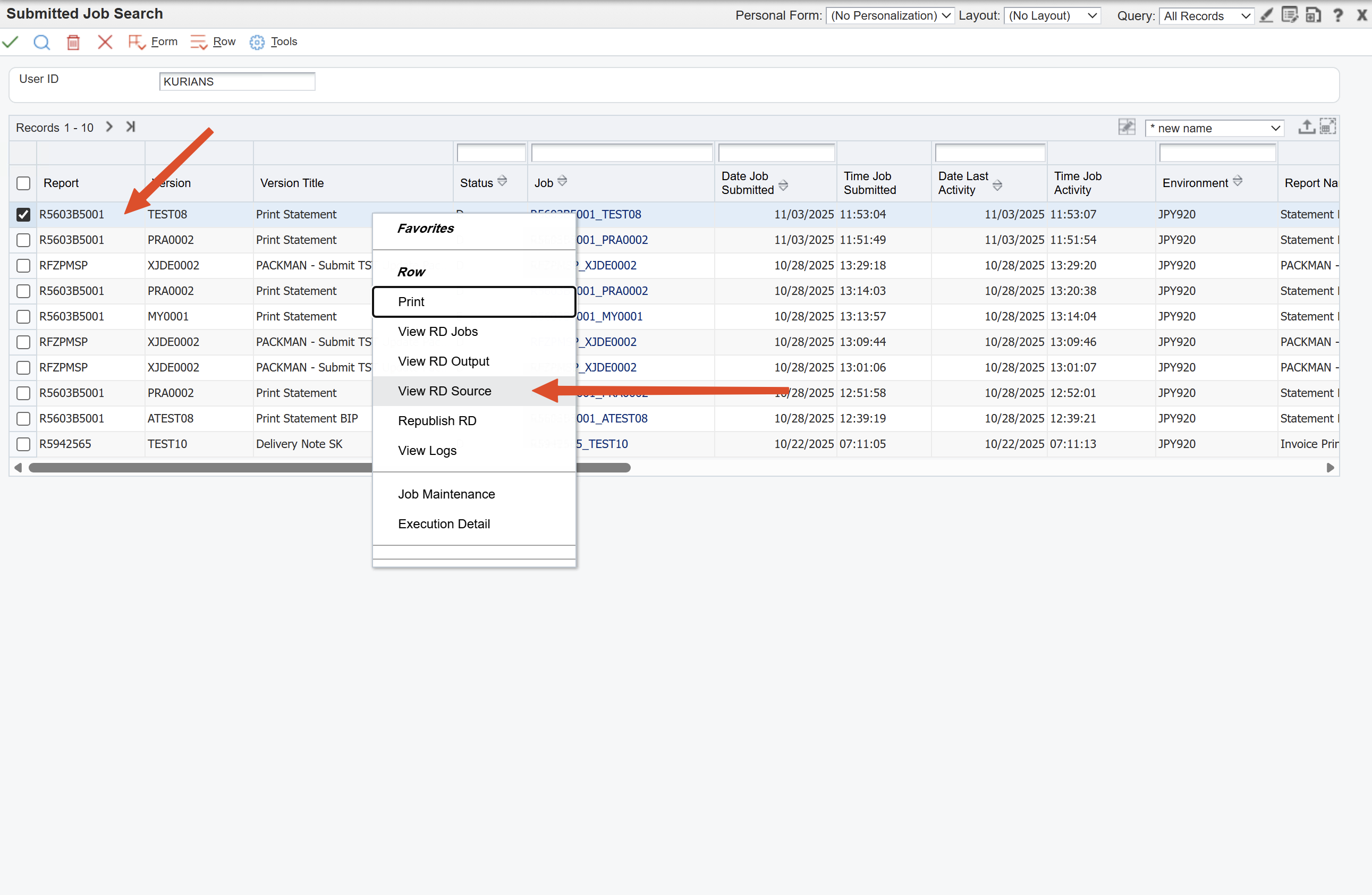
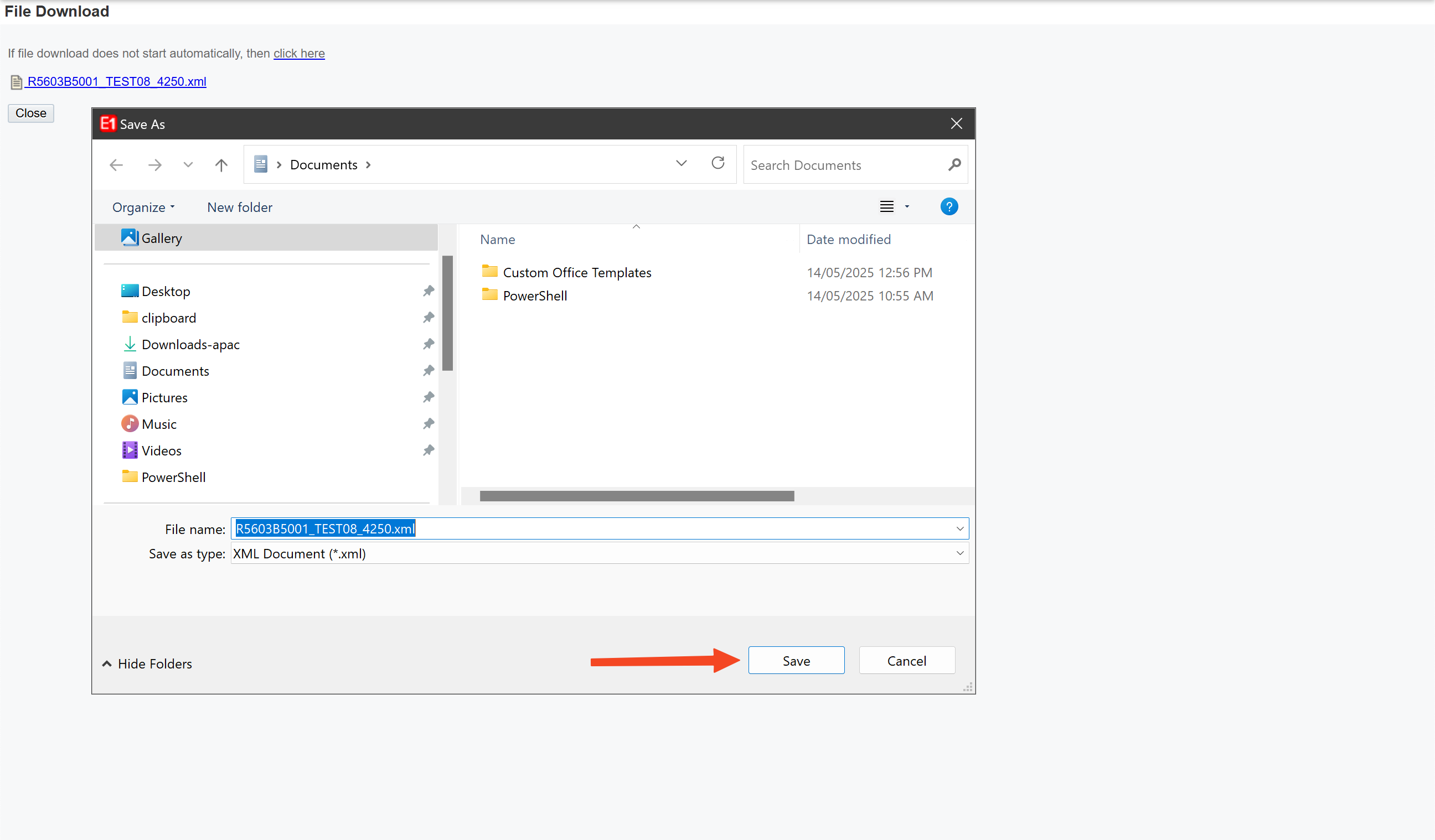
Download RD Source .xml file
Select File Name XML Tag
Section titled “Select File Name XML Tag”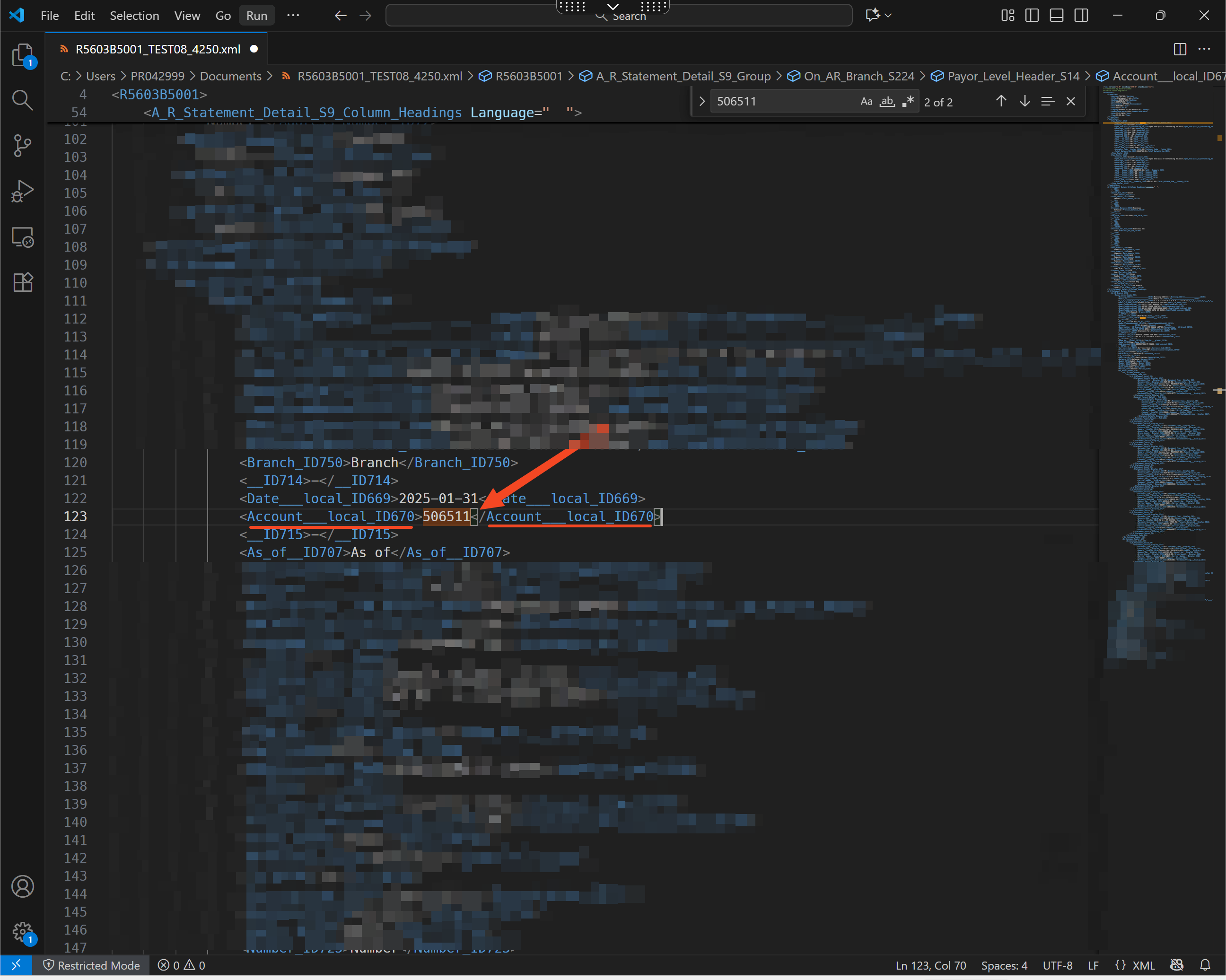
Crate Output Data Structure and Data Item
Section titled “Crate Output Data Structure and Data Item”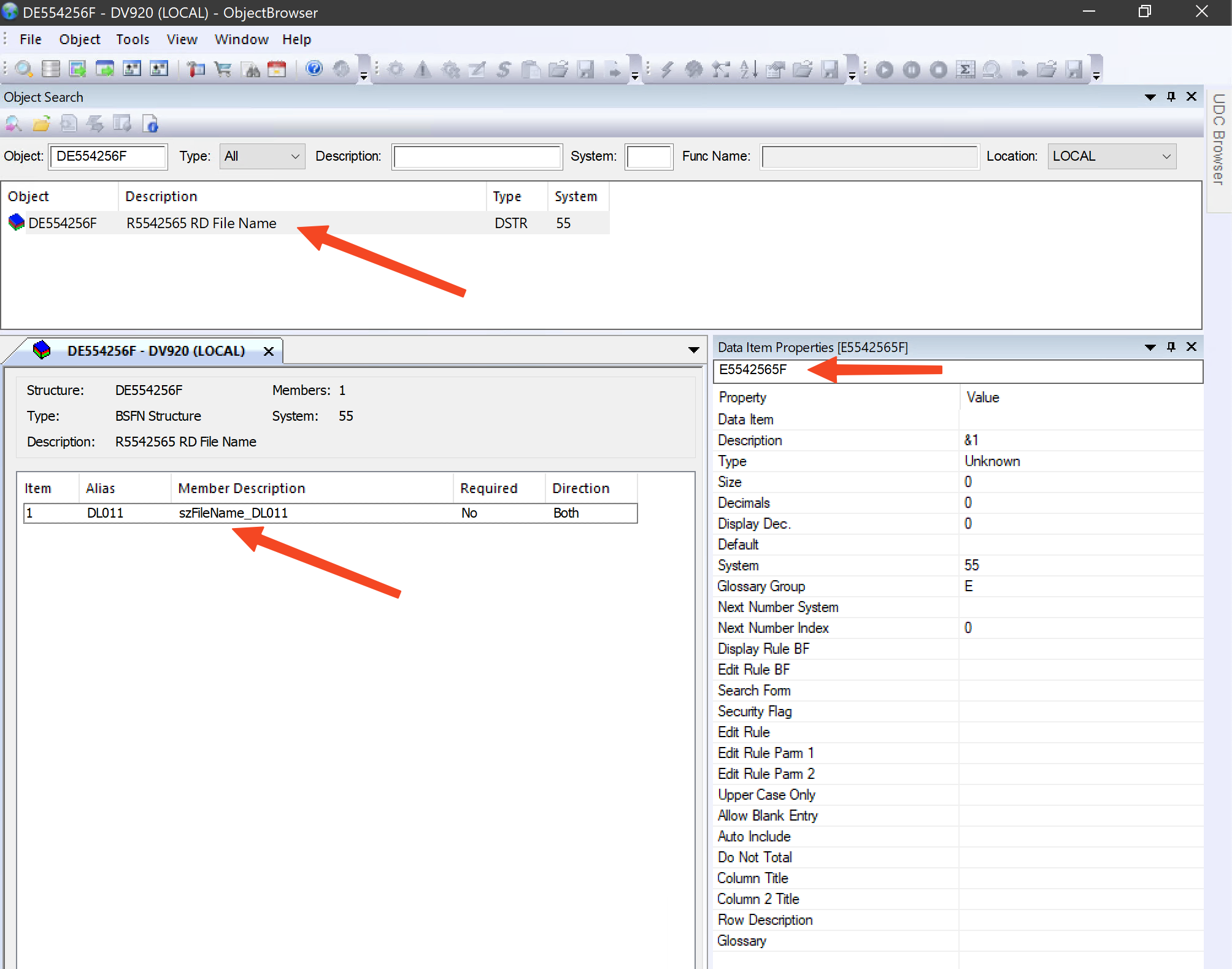
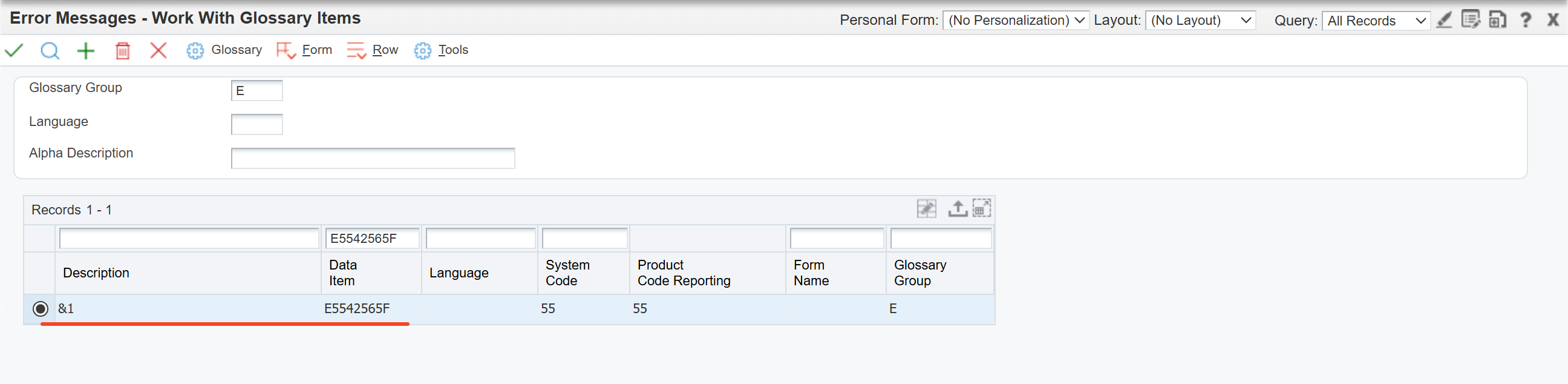
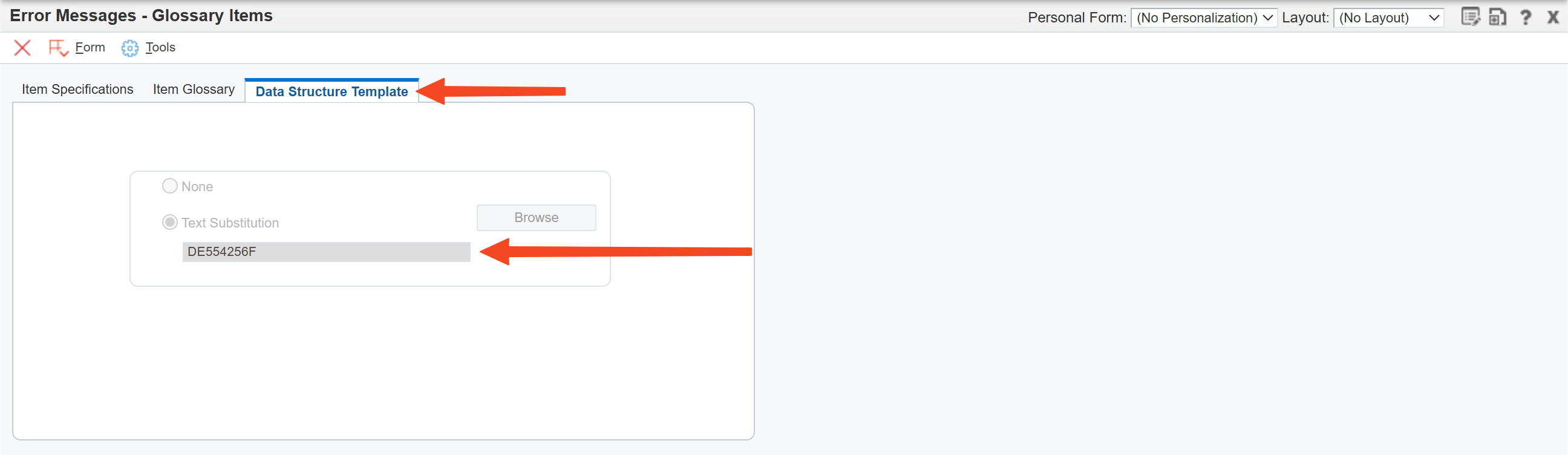
Create Mapping
Section titled “Create Mapping”
Map Output File Name to Output Structure Member/Value
Section titled “Map Output File Name to Output Structure Member/Value”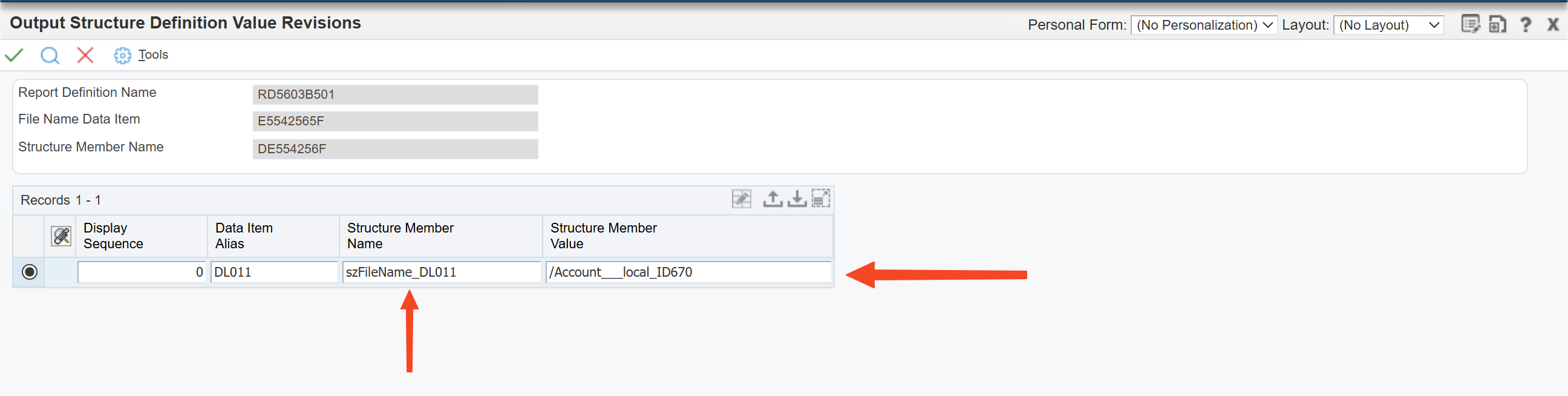
Example
Section titled “Example”Submit Report and Retrieve RD Output.
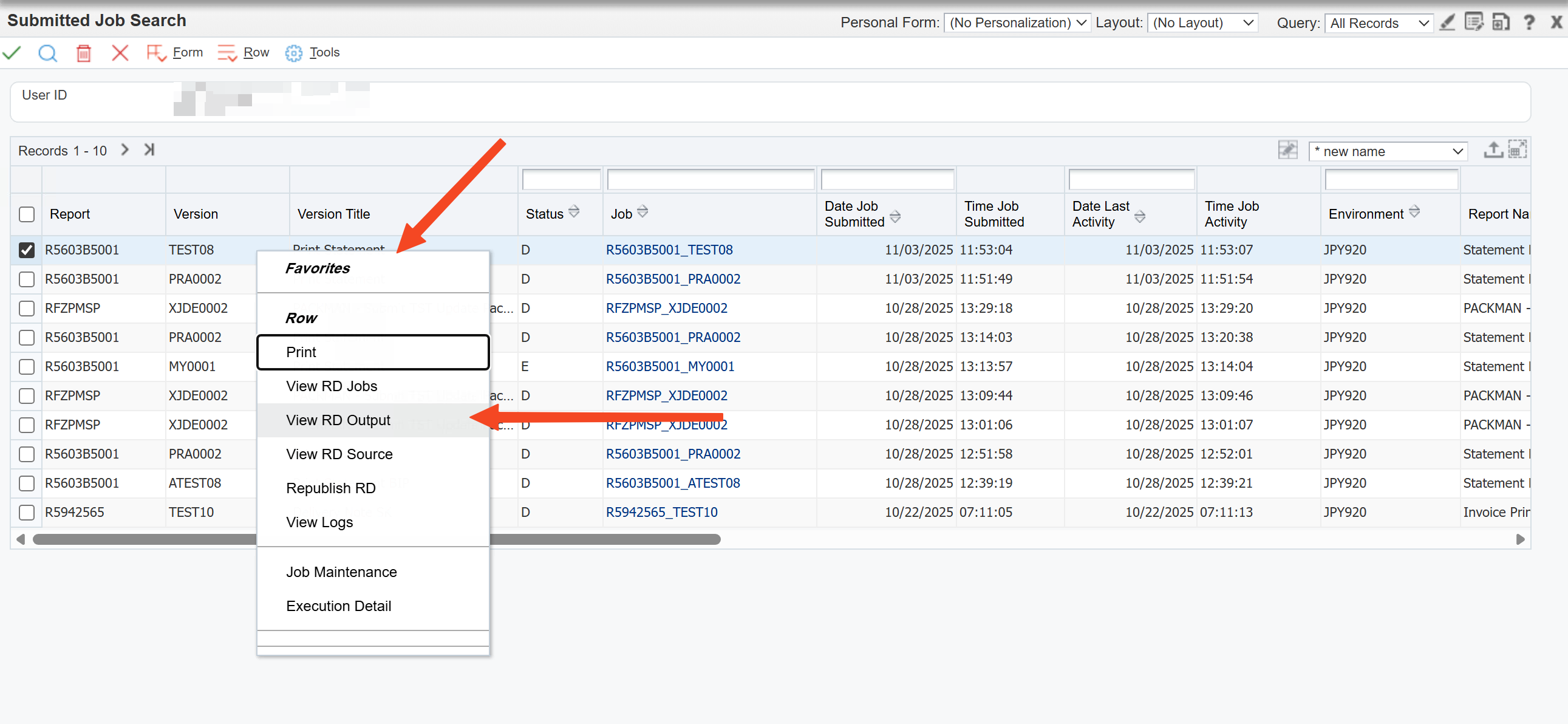
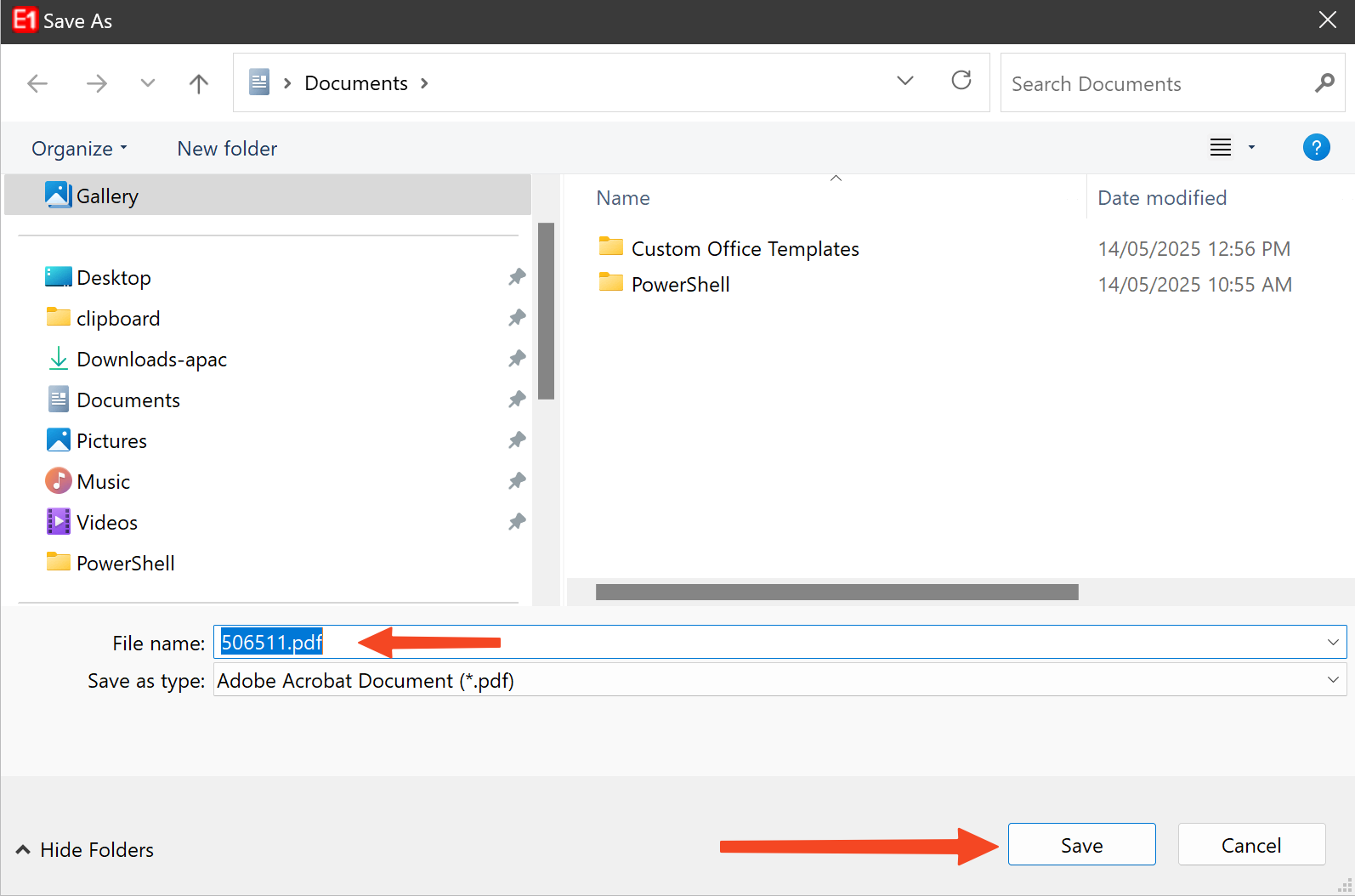
Save File : File Name is based on the selected .xml file tag.

Save File.
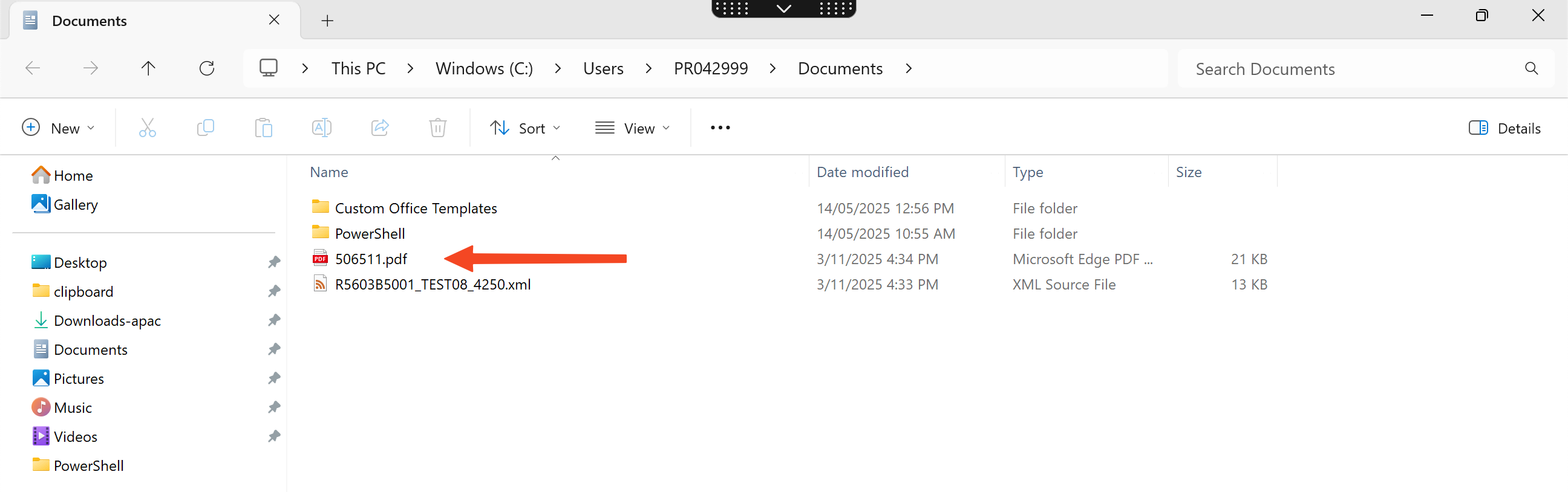
File Saved with the appropriate name.
Best Practices
Section titled “Best Practices”- Use clear, consistent file naming patterns across all environments.
- Prefer UNC paths (
\\server\share\folder) over local drive letters. - Include key tokens like
%R,%U, and%Dfor easy traceability. - Test permissions and output paths in UAT before deploying to production.
- Store all BIP templates and naming configurations in version control.
Conclusion
Section titled “Conclusion”Defining a custom output file name in JD Edwards BI Publisher improves organization, automation, and traceability across reporting processes.
By using override patterns and XML tag mapping, reports become easier to identify, manage, and integrate with downstream systems.